BOOKMRK Docs
Welcome to BOOKMRK — a lightweight bookmark / board manager with a browser-extension-style manifest and a React + Vite front-end. This document explains how the application behaves, how to install and run it, how to use each feature, and details on the project structure.
Introduction
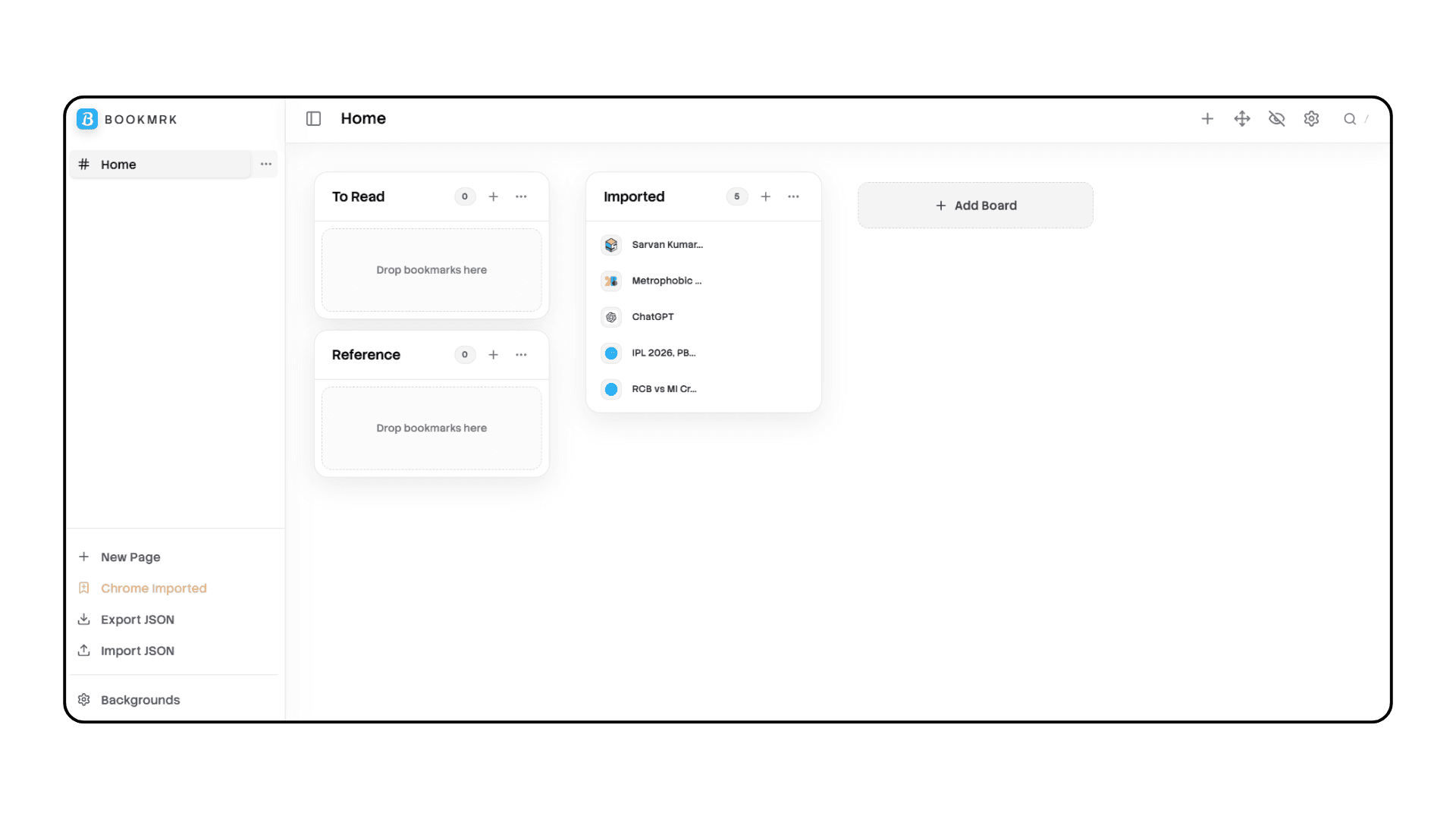
BOOKMRK is a focused bookmarking and board management tool implemented as a React application bundled with Vite. The project is organized to support both a local web-app development experience and an extension-like manifest for browser integration. The app aims to be fast, keyboard-friendly, and extensible.
High-level goals:
- Easy, fast bookmarking and page saving
- Organize bookmarks on boards and pages
- Quick-save modal and on-page keyboard interactions
- Sync-friendly storage model (local-first)
Setup & Installation
Quick Start (Local Evaluation)
1. Install dependencies:
npm install2. Run the development server:
npm run devOpen the URL printed by Vite (usually http://localhost:5173).
Building for Production
npm run build
npm run preview
The build output will be in dist/. Use the output assets and public/manifest.json to produce an extension bundle.
Browser Extension Specifics
The repo contains typical extension artifacts, enabling the project to be used both as a web app and as an extension.
public/manifest.json— extension manifest (permissions, icons, content/background scripts)background.js— background script entrypointcontent_toast.js— content script for notifications and quick-save flows
Packaging recommendation: When building for an extension platform, copy the dist/ output into a temporary folder with manifest.json and icons/, then load it as an unpacked extension for testing.
Core Features & UI Walkthrough
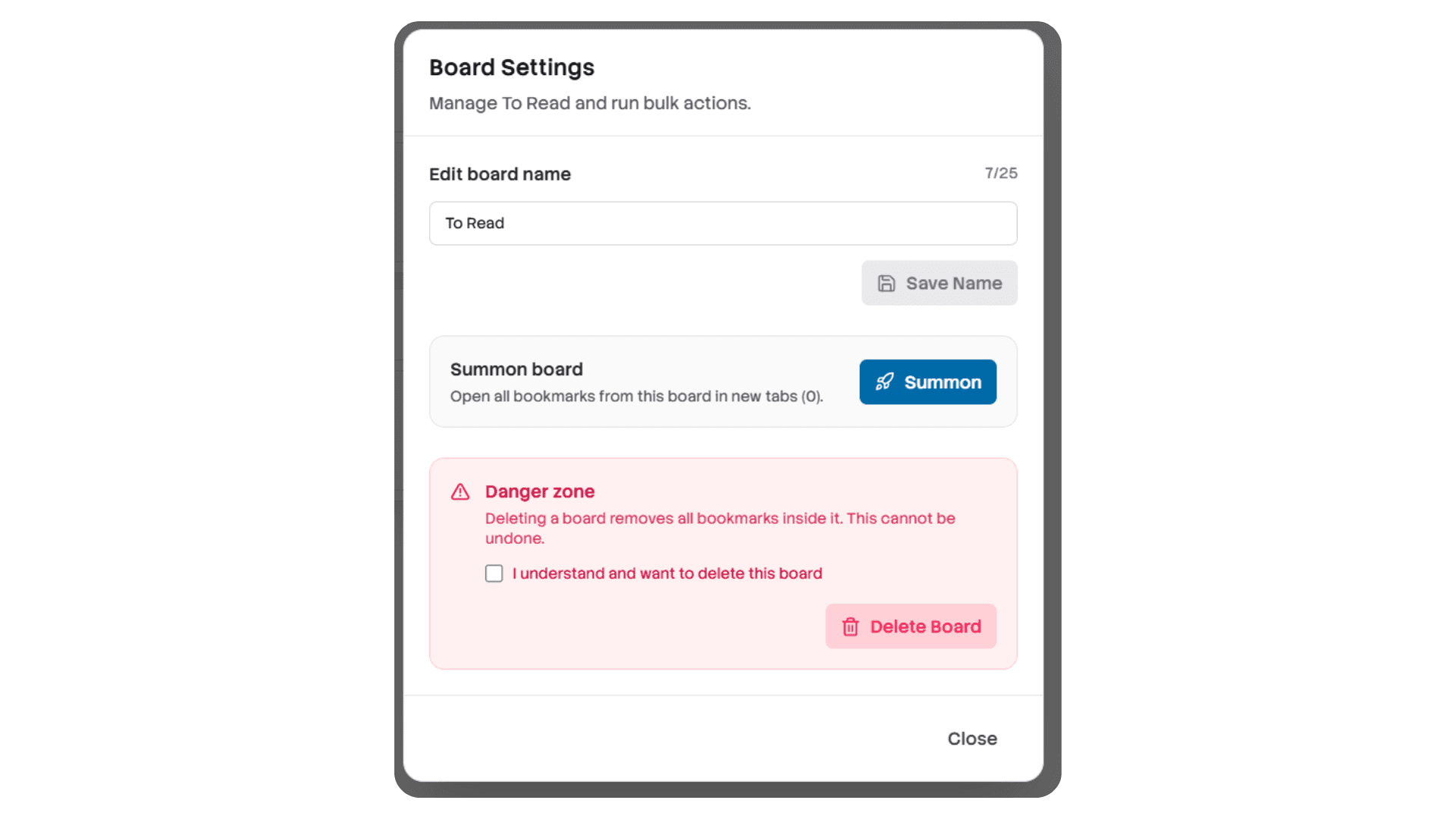
Boards
Group bookmarks visually into boards and columns.
Pages
A page is a collection or view within a board.
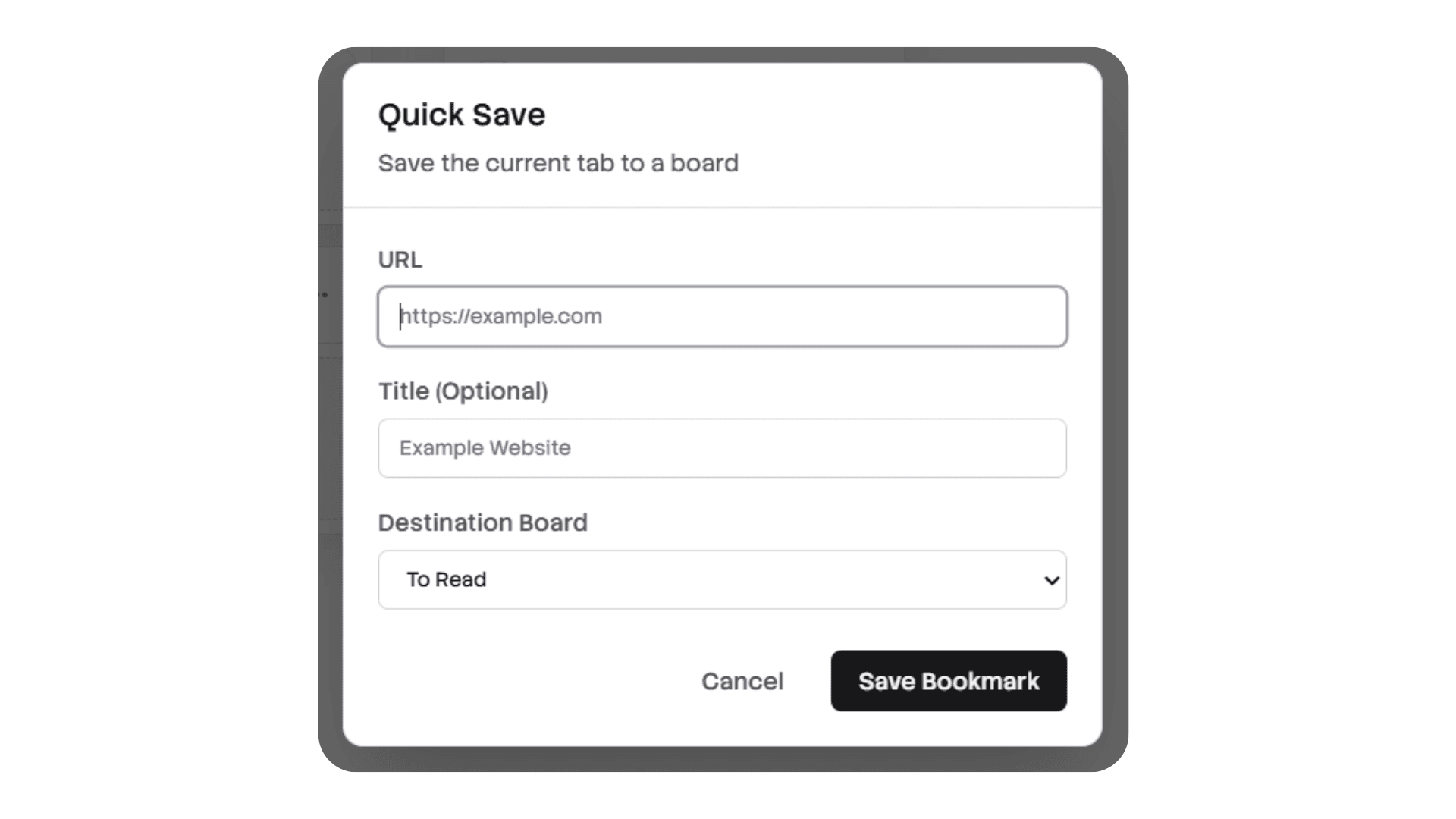
Quick Save
A modal to rapidly save the current page or URL.
Walkthroughs
Saving a Bookmark
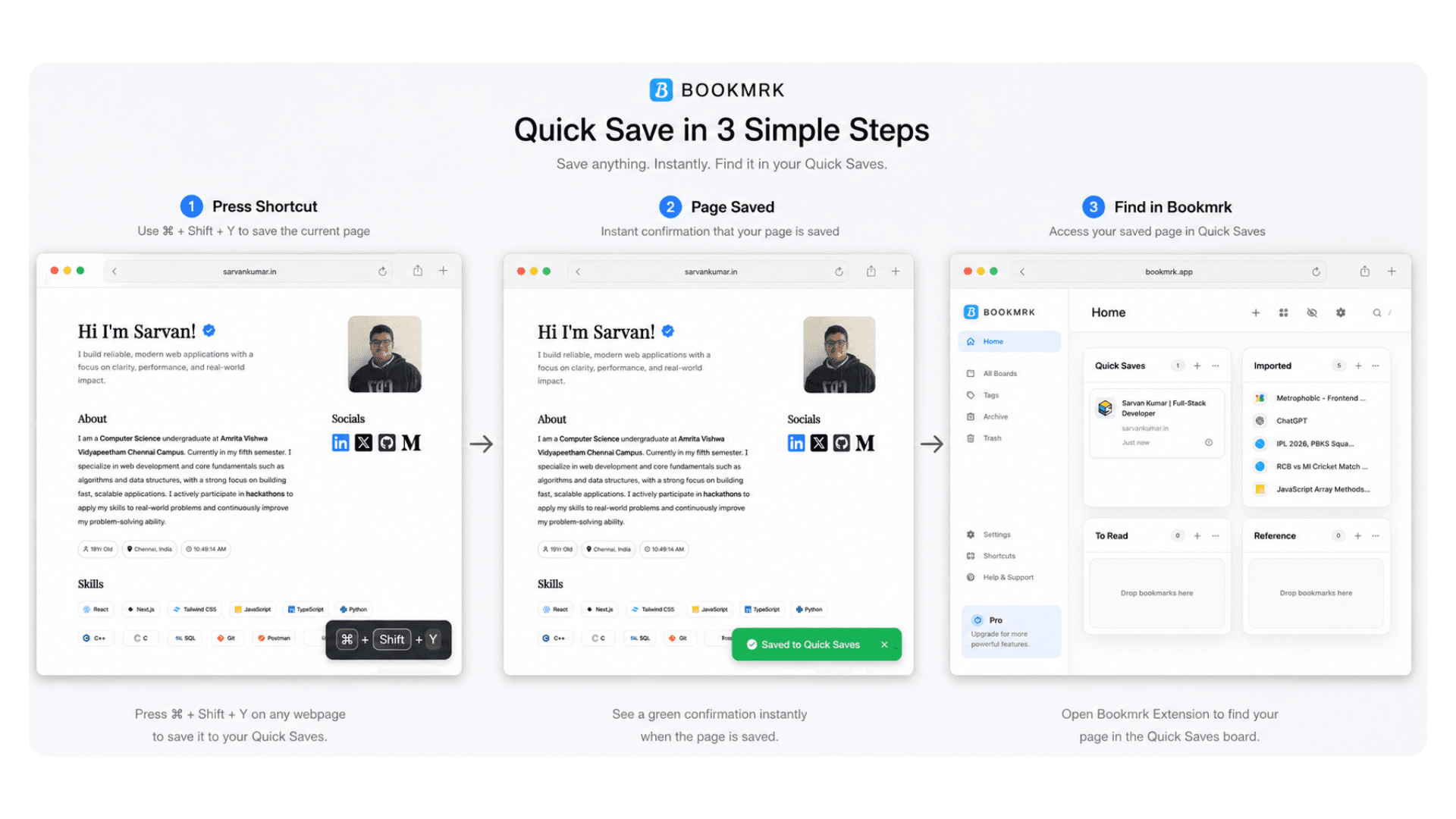
- Open the Quick Save modal via the toolbar or a keyboard shortcut.
- Enter a title, choose a board and page, optionally edit the favicon or description.
- Click Save — the bookmark will appear in the selected board/page and persist to local storage.
Creating & Organizing Boards
- Open the Sidebar and choose Add Board.
- Name the board and optionally create default columns.
- Drag bookmarks between columns to reorganize.
Component Reference
This section explains the visible React components and their behaviors for end users and developers.
Toolbar
Top-level action bar for quick commands (search, add bookmark, settings).
Clicking Search opens SearchModal; Add opens QuickSaveModal or AddBookmarkModal; Settings opens SettingsModal.
Sidebar
Navigate between Boards, Pages, and Settings.
Pin the sidebar to keep it visible; otherwise it auto-collapses on narrow screens. Right-clicking yields context actions.
BoardColumn
Container for a vertical list of bookmark tiles.
Supports drag-and-drop reordering; shows column title and count of bookmarks.
Data Model & Storage
BOOKMRK uses a local-first storage model persisted in the browser's storage (localStorage). Saves are batched and debounced to avoid excessive write frequency.
Bookmark: id, title, url, description?, favicon?, pageId
Page: id, title, boardId, columns
Board: id, title, pages
Settings & Configuration
Settings are available in the SettingsModal and saved to local storage.
- Theme selection: Light / Dark / System
- Default landing board/page
- Import/Export backup
- Toggle onboarding
- Keyboard shortcut preferences
Theming
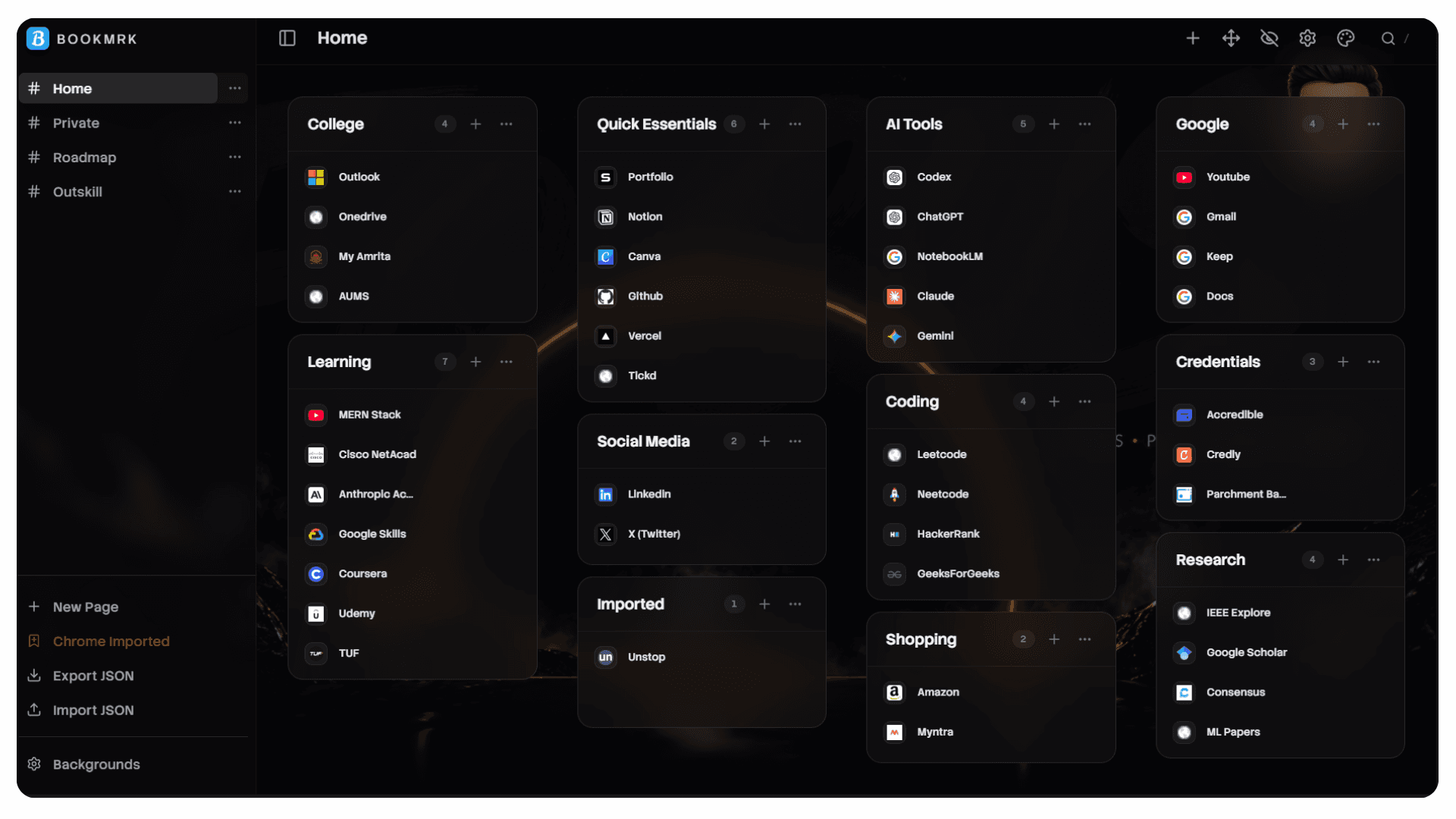
Discord (Default)
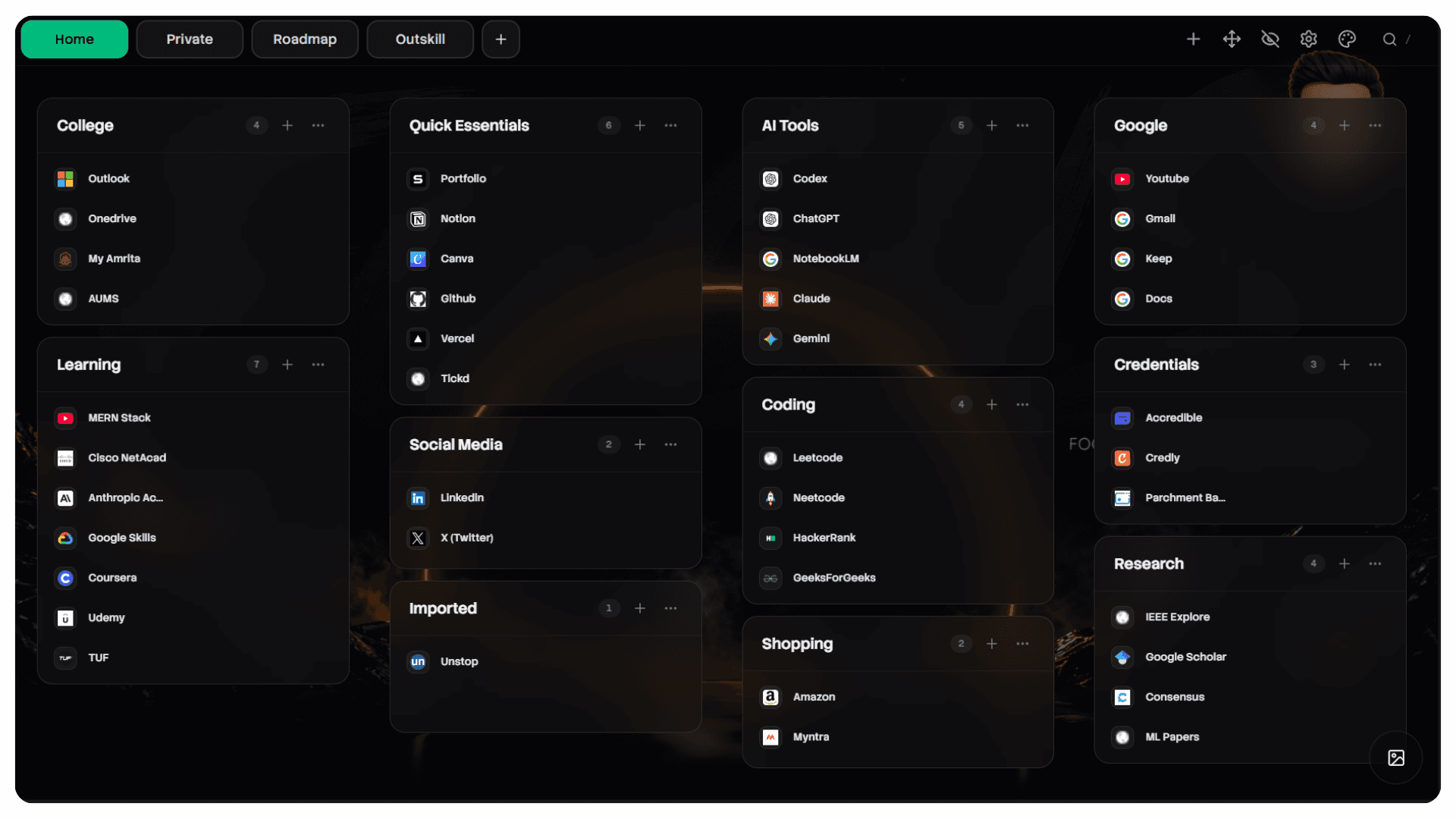
Simple
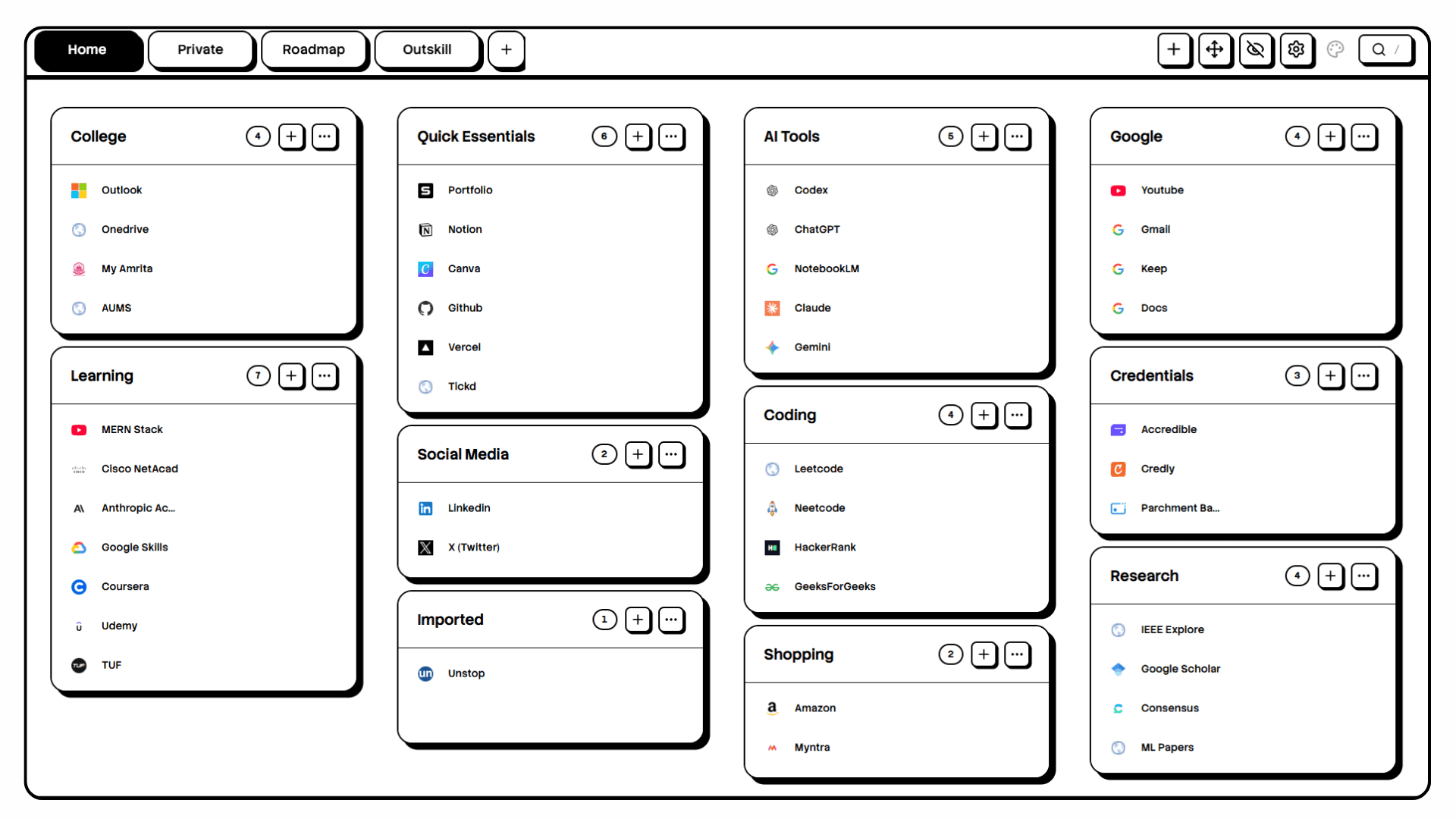
NeoBrutalist
Shortcuts & Power-User Tips
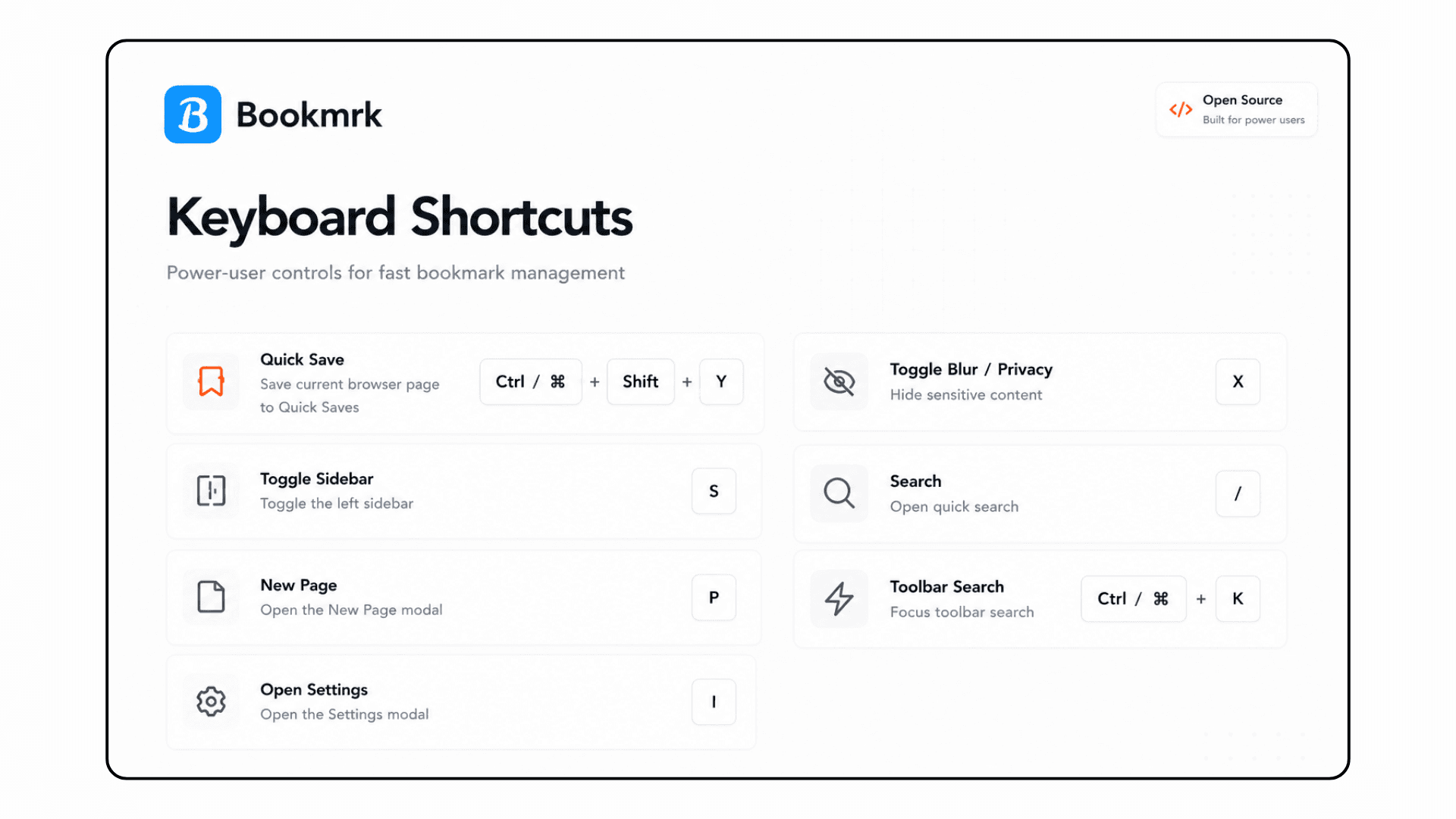
| Action | Shortcut |
|---|---|
| Open Search Modal | Ctrl/Cmd + K |
| Open Quick Save Modal | Ctrl/Cmd + S |
| Close Modal / Overlay | Esc |
Power-user tips
- Use Quick Save when browsing to stash pages rapidly.
- Keep frequently used board pinned in the sidebar for one-click access.
- Use exported JSON to create offline backups or to migrate between devices.
Troubleshooting & FAQ
Bookmarks not appearing after import
Ensure the JSON format matches the schema and that pages and board IDs are present. Use the migration script if necessary.
Favicon not loading
The app falls back to a generated placeholder. Check that the URL is valid and reachable.
If the app fails to start
Confirm Node/npm versions. Run npm install again, then npm run dev and inspect the terminal output for errors.
Q: Can I sync bookmarks across devices?
A: The current implementation uses localStorage only. You can export/import JSON to manually transfer data. Cloud sync may be implemented in future releases.
Q: Does the app support tags and full-text search?
A: Tags are supported in the data model; the search modal supports fuzzy search across title and description. Tag-based filtering may be available in future releases.
Q: How do I migrate from an older version?
A: A migration script scripts/migrate_v1_to_v2.ts exists; run the script to migrate data safely.
Developer Guide
Contributions are welcome! Fork the repository, create a feature branch, run and test locally, and open a PR with a clear description. Keep changes focused and testable.
Exported commands
scripts/migrate_v1_to_v2.ts— run with ts-node to transform old data formats.npm run lint— runs lintersnpm run test— runs test suite
File Map Appendix
- Project root: package.json, tsconfig.json, vite.config.ts, README.md
- Public assets: public/manifest.json, public/icons/*
- Source files: src/main.tsx, src/App.tsx, src/components/*, src/shared/*, src/storage/*
Security & Privacy
BOOKMRK stores user data locally and never phones home by default. No sensitive credentials are stored by default.
Glossary & Scenarios
Bookmark
An individual saved URL with metadata.
Board
A named collection of pages used to organize bookmarks.
Page
A view within a board; can contain columns of bookmarks.
Quick Save
Modal to save the current page instantly.
Scenario 1: Rapidly save research links
- Browse multiple pages.
- Each time press the Quick Save hotkey (or click the toolbar icon).
- Select the target board and page and save — the bookmarks are persisted locally and can be arranged later.
Scenario 2: Share a curated board
- Use Export from Settings to create a JSON snapshot.
- Send the snapshot to your colleague.
- The colleague imports the snapshot to reproduce your board structure locally.